
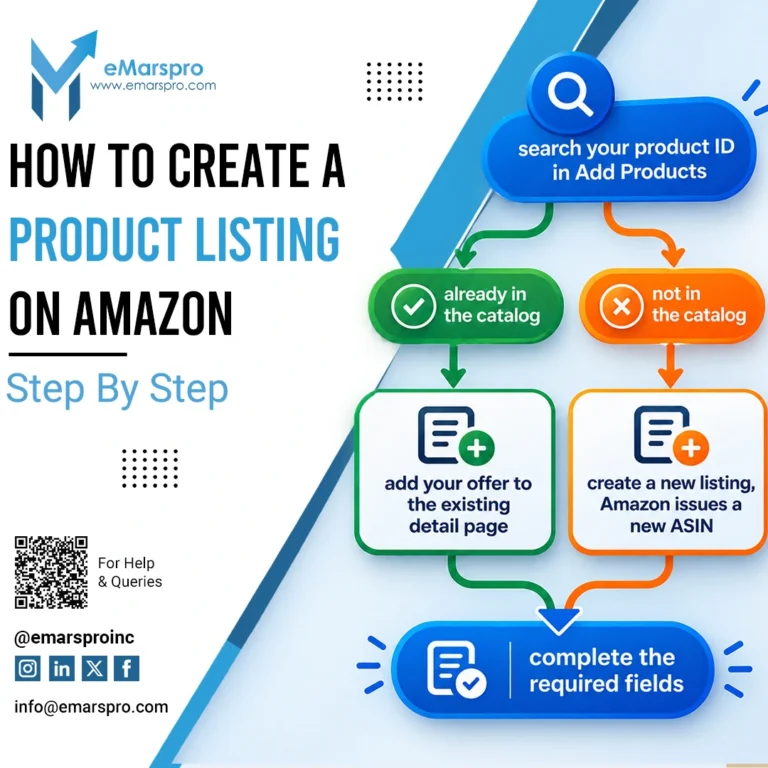
The first decision in creating an Amazon listing is whether the product already exists in Amazon’s catalog. If it does, you match your offer to the existing detail page. If it does not, you create a new page and Amazon assigns it a new ASIN. Both routes start in Seller Central under Catalog, then Add Products.
This guide covers both routes, the five tabs Amazon requires, the title limit that took effect in July 2026, and the AI drafting tools now built into Add Products. Every step was checked for this update against Amazon’s own listing guide. If you are new to the console, start with what Seller Central is.
Match or create: which route are you on?
Amazon’s listing guide describes the two routes plainly. Matching adds your offer to a page someone else may control; creating builds a page you control. The table shows how to tell them apart.
| Match an existing page | |
|---|---|
| When | The identical product, pack size and variant is already on Amazon |
| What you supply | Price, quantity, condition, fulfillment channel |
| ASIN | Existing ASIN, shared with other sellers |
| Who controls the content | The brand or the first lister; you may need brand approval |
| Typical case | Resellers and wholesalers |
A three-pack is not the same item as a single; a new color is not the same item as the old one. Match the wrong page and you inherit content you cannot edit, plus a review history that may not be yours.
Our Amazon listing optimization audits start by checking which route each ASIN took, because the mistakes made here last for years.
Step 1. Check whether the product already has an ASIN
Search inside the catalog tool, not the storefront. Go to Catalog, then Add Products, and enter the GTIN (UPC, EAN or ISBN). If Amazon returns a match, you are on the match route. If it returns nothing, click Create a new listing under the search field; you are on the create route.
Step 2. Match the existing page, or open a new one
On the match route, Amazon may ask you to apply before you can sell. Its listing guide says some brands and categories require approval, and that brand-registered products generally require you to be a Brand Representative or an authorized Reseller. Per Amazon’s branded products guide, the application wants a purchase invoice or a brand authorization letter dated within 180 days.
On the create route you own every field. Fill them as if the buyer will never read past the first bullet, because on mobile many do not.
Step 3. Complete the five tabs Amazon requires
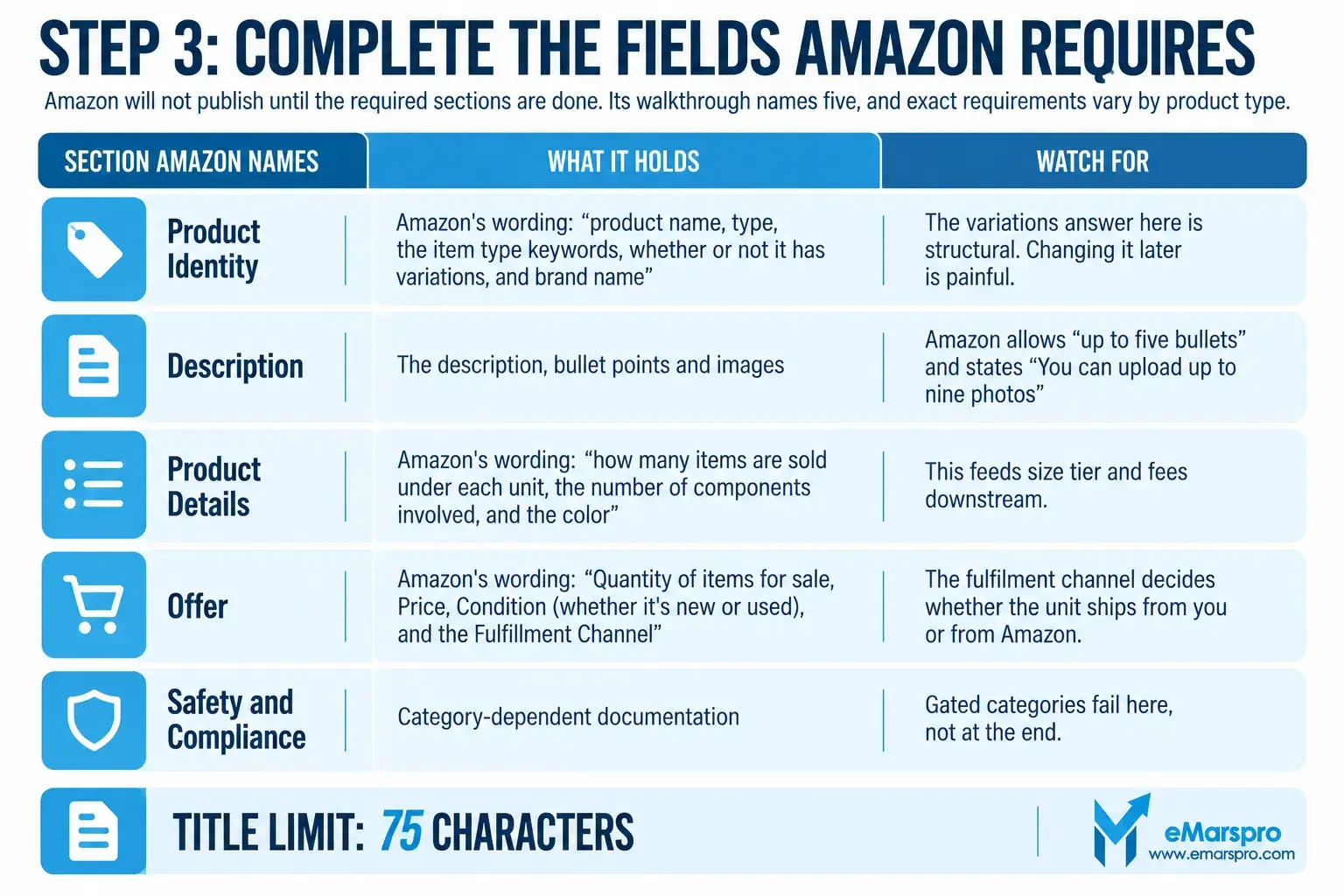
Amazon’s guide lists the tabs in this order. Required fields vary by product type, so expect the Product Details tab to ask for different things for a kettle and a T-shirt.
| Tab | What goes in it |
|---|---|
| Product Identity | Product name (the title), product type, item type keywords, whether the product has variations, brand name |
| Product Description | The description paragraph, up to five bullet points, and up to nine images |
| Product Details | Units per item, number of components, color and the other attributes for that product type |
| Offer | Quantity, price, condition (new or used), and the fulfillment channel: FBA or Fulfilled by Merchant |
| Safety and Compliance | What the product needs: child-safety hazards, safety certifications, battery details |
The title rule
Since July 27, 2026, titles in all non-media categories are limited to 75 characters including spaces; a separate Item Highlights field adds up to 125 characters that show beside the title in search results.
Titles still over the limit are being replaced with Amazon’s AI-generated recommendation, with a 14-day review window for Brand Registry enrollees. The 75-character title rule post has the full policy.
Step 4. One listing at a time, or a spreadsheet
The form is right for a first listing and for unusual products. The spreadsheet template in Add Products creates and matches many listings at once; Amazon says it can update thousands of listings in one upload. Our rule of thumb: under about 50 products the form is faster, above it the template pays for the learning curve.
Step 5. Set the variation structure before you publish
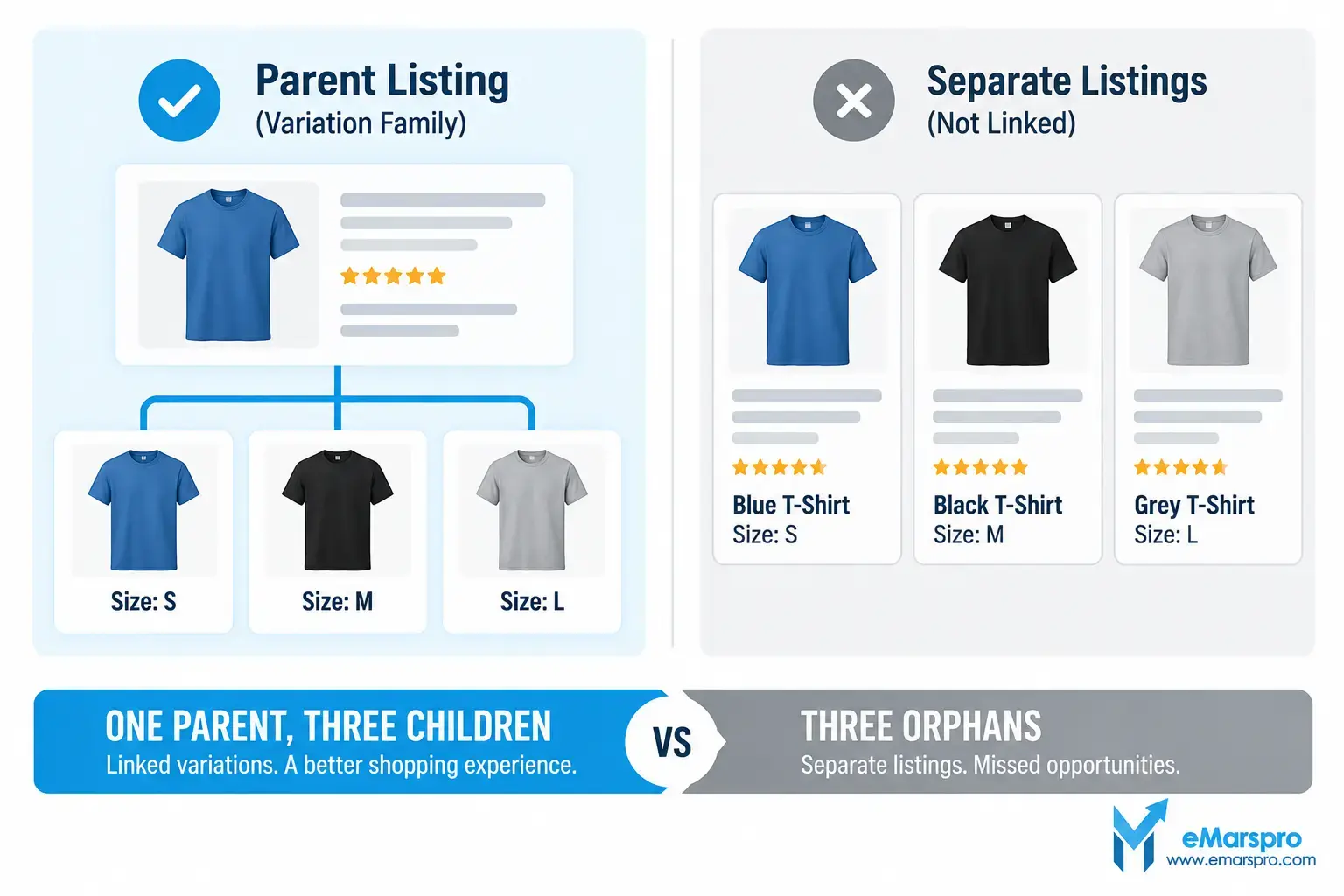
Answer the “does this product have variations” question correctly at creation. A parent with child variations (sizes, colors, pack counts) keeps reviews and traffic on one page; unlinked listings split both and are slow to fix. Amazon’s Variation Wizard builds parent-child relationships in bulk from an inventory file template.
Can Amazon’s AI write the first draft?
Yes, and for a new catalog it is the fastest honest start. Amazon’s AI listing guide describes four ways to begin inside Add Products: upload up to three product images, type a short description and select Generate content, paste a public web URL from your own site, or opt in to AI enhancement on a spreadsheet upload for new products.
The AI drafts the title, bullets, description and keywords. In the A+ Content Manager, modules marked AI Ready can generate text and images, drawing on category insights when you enter a brand-owned ASIN.
What a person still decides: Amazon states that you review, edit and approve the listing before you submit it, and that if you use the proposed content you agree you have reviewed it.
In our listing work the draft goes through the same checklist as a human draft: claims verified, the title cut to 75 characters by hand, the compliance tab completed from the product’s own documents.
The pre-publish check
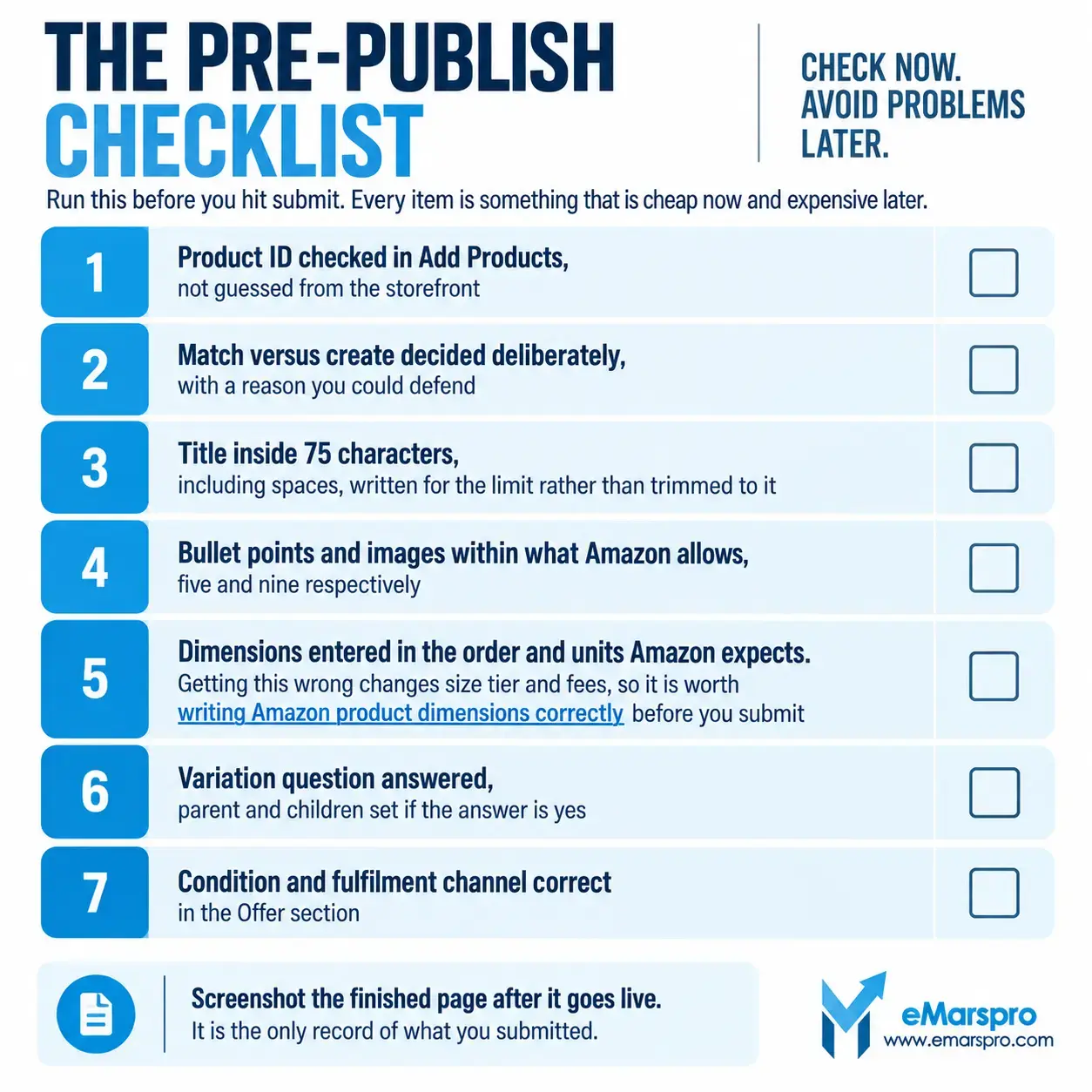
- Product ID searched in Add Products, and the match-or-create decision written down.
- Title at 75 characters or fewer, keyword first, no promotional words.
- Up to five bullets and up to nine images, with the main image to Amazon’s image rules.
- Dimensions and weight entered the way Amazon measures them; the product dimensions guide shows the order and the units.
- Variation parent and children set, or “no variations” chosen on purpose.
- Condition and fulfillment channel correct, quantity real.
- Screenshot the live page the day it publishes, so later edits have a baseline.
Creating a listing is not the same job as optimizing one
Creation gets the listing live and compliant. Optimization is the later job of changing titles, bullets, images and A+ content against real search and conversion data, which does not exist until the listing has traffic. Do the first job cleanly and the second job has something to measure.
Frequently Asked Questions
In Seller Central go to Catalog, then Add Products, and search by the product’s GTIN (UPC, EAN or ISBN). A match means the product is already in Amazon’s catalog and you add your offer to it; no match means you create a new listing.
Match only when your item is the same product, pack size and variant as the existing page. Create a new listing when any of those differ or the product is not on Amazon yet. A duplicate page splits reviews and traffic and is slow to merge later.
Five tabs: Product Identity, Product Description, Product Details, Offer, and Safety and Compliance. Required fields change by product type; Amazon allows up to five bullet points and nine images, and titles in non-media categories must be 75 characters or fewer.
It can draft it. In Add Products you can start from up to three images, a short description or a public web URL, and Amazon generates the title, bullets, description and keywords. Amazon states that you review, edit and approve the draft before submitting, and that you are responsible for its accuracy.
One Clean Listing Beats Three Fast Ones
A listing created on the right route, with the five tabs complete and a title inside the limit, needs no rescue later. If a catalog was built in a hurry and now carries duplicates, suppressed pages or AI titles nobody reviewed, our listing optimization team starts with a free 48-hour audit of the catalog before touching a word.