

Quick answer: Creating a product listing on Amazon starts with one decision: is the product already in Amazon’s catalog or not. If it is, you add your offer to the existing detail page. If it is not, you build a new page and Amazon issues a new ASIN for it. Both routes run through Add Products in Seller Central, and neither publishes until the fields Amazon requires are complete.
Get that first decision wrong and you create a duplicate page that splits your reviews and your traffic. It is the most expensive mistake available at this stage, and it happens in the first two minutes.
The two routes, and how to tell which one you are on
| Match an existing detail page | Create a new listing | |
|---|---|---|
| When | The product is already sold in the Amazon store | The product is not in the catalog |
| What you supply | Your offer: quantity, price, condition, fulfilment channel | The full product record, plus your offer |
| ASIN | You join the existing ASIN | Amazon issues a new one |
| Who controls the content | The brand owner or whoever created the page | You do |
| Typical case | Reselling or wholesale | Your own brand, or a genuinely new item |
Amazon states the reselling case plainly: “there may already be an active Amazon listing for the product you want to sell. In that case, you can just match your offer to the existing product detail page.”
The other route is just as plain: “If your product isn’t already sold in the Amazon store, you can get a new ASIN by creating a product detail page.”
Step 1: Check whether the product already has an ASIN
Do not guess this from a search on the storefront. Check it in the catalog tool, because that is what Amazon matches against.
Amazon’s own walkthrough sets out the check: “To see if an ASIN already exists for a product, hover over Catalog in the main menu in Seller Central, then click Add Products. On the Add Products page, click Product IDs, then enter the product’s GTIN and click Submit.”
- A match comes back. The product is in the catalog. You are on the match route
- Nothing comes back. You are on the create route. Amazon’s guide puts it as: “Enter your GTIN or product ID into the search field. If your product doesn’t appear in search listings, click Create a new listing under the search field”
If you have not set up your account yet, that comes first. Our beginner walkthrough of Amazon Seller Central covers the setup this step assumes.
Step 2: Match an existing detail page, or open a new one
Matching is faster and it is not the safe default. It is the correct choice only when the item is genuinely identical.
Match when the product, the pack size and the variant all match the existing page exactly. You supply an offer and nothing else.
Create when any of those differ. A three-pack is not a single unit. A different colourway with its own product ID is not the same item. Attaching an offer to a page that describes something slightly different is how returns and negative reviews start.
The trade you are making is real. On the match route you inherit a page you cannot edit and did not write. On the create route you own every word, and you also own every error.
Step 3: Complete the fields Amazon requires
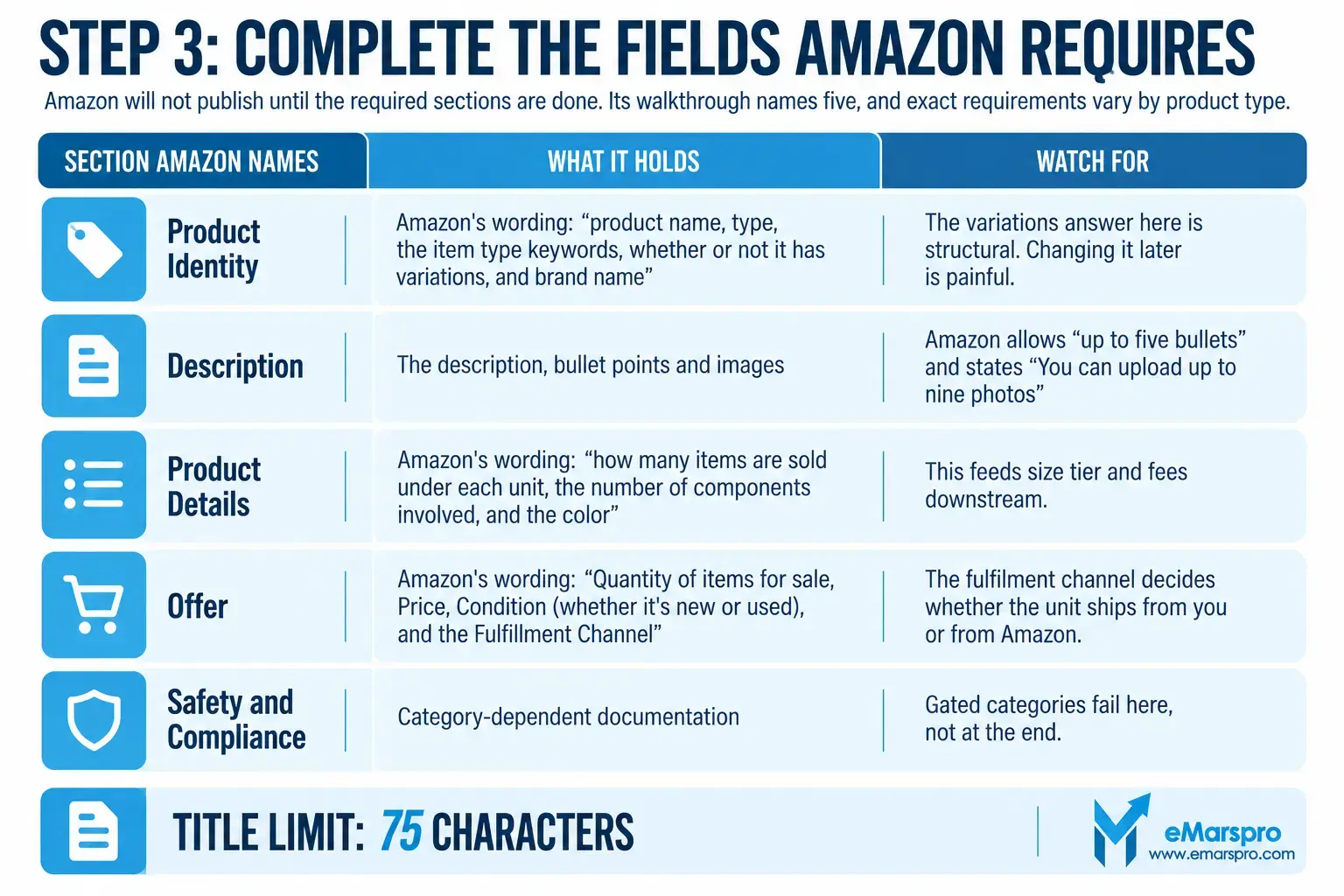
Amazon will not publish until the required sections are done. Its walkthrough names five, and exact requirements vary by product type.
| Section Amazon names | What it holds | Watch for |
|---|---|---|
| Product Identity | Amazon’s wording: “product name, type, the item type keywords, whether or not it has variations, and brand name” | The variations answer here is structural. Changing it later is painful |
| Description | The description, bullet points and images | Amazon allows “up to five bullets” and states “You can upload up to nine photos” |
| Product Details | Amazon’s wording: “how many items are sold under each unit, the number of components involved, and the color” | This feeds size tier and fees downstream |
| Offer | Amazon’s wording: “Quantity of items for sale, Price, Condition (whether it’s new or used), and the Fulfillment Channel” | The fulfilment channel decides whether the unit ships from you or from Amazon |
| Safety and Compliance | Category-dependent documentation | Gated categories fail here, not at the end |
Field names and allowances above are quoted from Amazon’s guide to creating product listings, verified August 16, 2026.
One constraint applies to every listing created since July 2026. Amazon’s Seller Central announcement states: “Starting July 27, 2026, titles in all categories except for media will need to be 75 characters or less including spaces.” The same announcement introduces Item Highlights, an additional 125 characters. Write the title inside 75 from the start rather than writing long and cutting later. Our breakdown of Amazon’s 75 character title rule covers the wording Amazon no longer accepts.
Step 4: One listing at a time, or a spreadsheet upload
Both routes exist inside Add Products. The choice is about volume, not preference.
| One at a time | Spreadsheet upload | |
|---|---|---|
| Best for | Your first listings, and anything unusual | Large batches of similar products |
| Where | The Add Products form | The spreadsheet option, using a blank template you download |
| What Amazon says | Guided, field by field | “By creating a spreadsheet that includes all of your products, you can create and match multiple product listings at the same time” |
| The risk | Slow at scale | One bad column repeats across every row |
The honest threshold: below roughly fifty products the form is faster than learning the template. Above it, the form stops being viable and the template pays for itself on the first batch.
Once a catalog is being built in bulk it needs maintaining in bulk, which is a different discipline again. Our guide to Amazon catalog management covers that side.
Step 5: Set the variation structure before you publish, not after
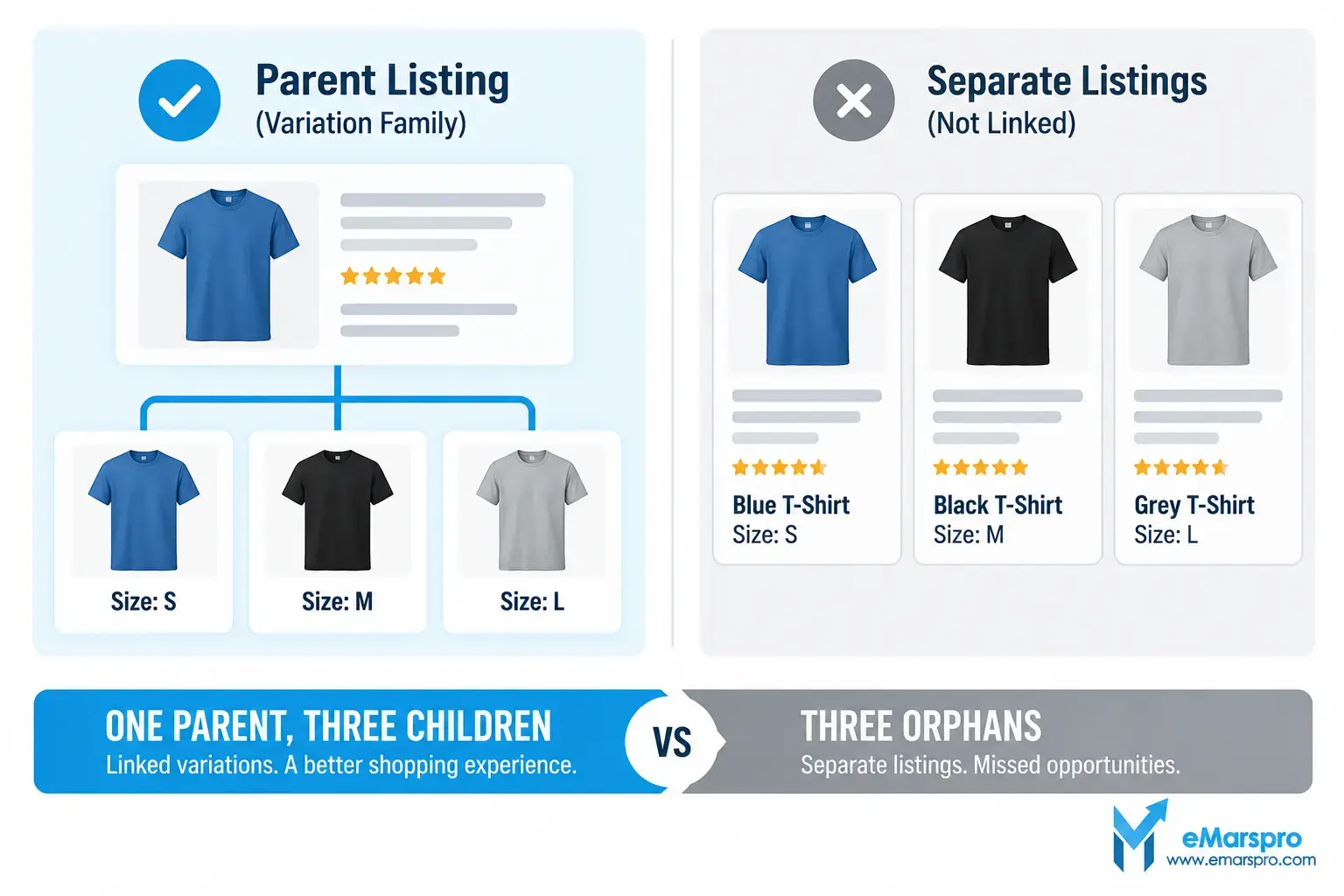
Amazon asks whether the product has variations inside Product Identity, at creation. That question is not cosmetic.
A correct variation family puts one parent listing above several children that differ by a single attribute such as size or colour. Shoppers land on one page and switch between options, and the reviews accumulate in one place.
Publish those same products as separate unlinked listings and you get the opposite: reviews scattered, traffic split, and every child starting from zero. Restructuring afterwards is possible and it is slow, and some of the review history does not travel.
Decide the parent, decide the varying attribute, and answer the question honestly the first time.
The pre-publish check
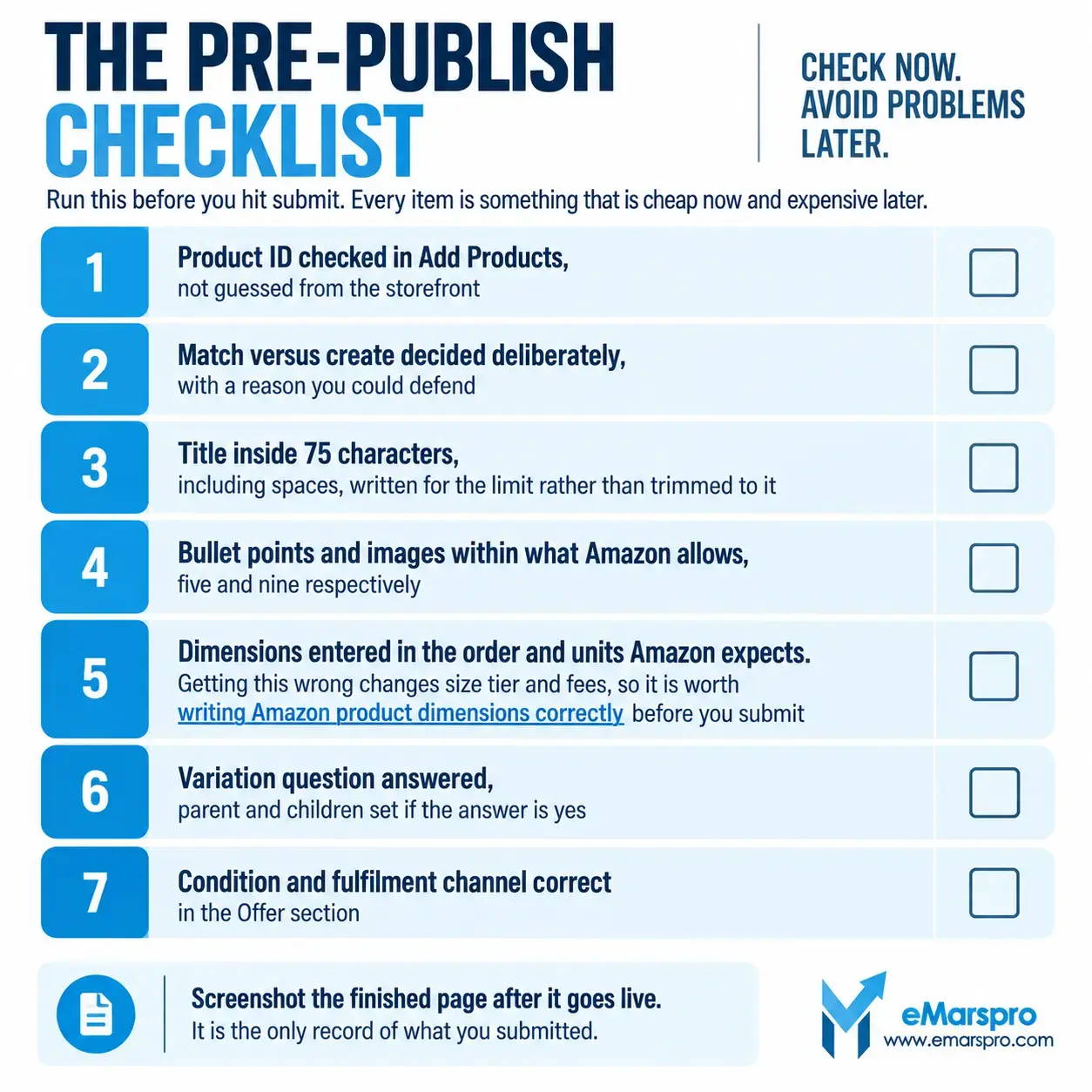
Run this before you hit submit. Every item is something that is cheap now and expensive later.
- Product ID checked in Add Products, not guessed from the storefront
- Match versus create decided deliberately, with a reason you could defend
- Title inside 75 characters, including spaces, written for the limit rather than trimmed to it
- Bullet points and images within what Amazon allows, five and nine respectively
- Dimensions entered in the order and units Amazon expects. Getting this wrong changes size tier and fees, so it is worth writing Amazon product dimensions correctly before you submit
- Variation question answered, parent and children set if the answer is yes
- Condition and fulfilment channel correct in the Offer section
Screenshot the finished page after it goes live. It is the only record of what you originally published.
Creating a listing is not the same job as optimizing one
Everything above gets a listing live and compliant. It does not make it competitive, and it is not meant to.
Optimizing is a different job with different evidence. It starts from a page that already has sessions, conversion and units attached to it, and it works one field at a time against those numbers.
None of that is covered here on purpose. It is covered in our guide to how to optimize an Amazon product listing, which picks up where this one stops.
Frequently Asked Questions
Amazon’s own walkthrough says to hover over Catalog in the main menu in Seller Central, then click Add Products. On the Add Products page, click Product IDs, then enter the product’s GTIN and click Submit. If a match comes back, the product is already in the catalog and you add your offer to it rather than building a new page.
Match when the product is genuinely the same item. Amazon states that when an active listing already exists for the product you want to sell, you can just match your offer to the existing product detail page. Create a new listing only when the product is not sold there yet, and Amazon issues a new ASIN.
Amazon’s walkthrough names five sections to complete: Product Identity, Description, Product Details, Offer, and Safety and Compliance. Product Identity covers the product name, type, item type keywords, whether or not it has variations, and brand name. Offer covers the quantity of items for sale, price, condition, and the fulfillment channel.
Yes. Amazon states that by creating a spreadsheet that includes all of your products, you can create and match multiple product listings at the same time. The blank template is downloaded from the spreadsheet option inside Add Products. It is the right route above roughly fifty products, and the wrong one for your first listing.
Conclusion
A live listing needs ongoing updates as Amazon’s requirements change. Keep your fields current, monitor performance, and optimize your Amazon listings based on real data. If your catalog has grown too large to manage manually, get a free account audit with findings delivered within 48 hours.